
Terminal menu and last transaction
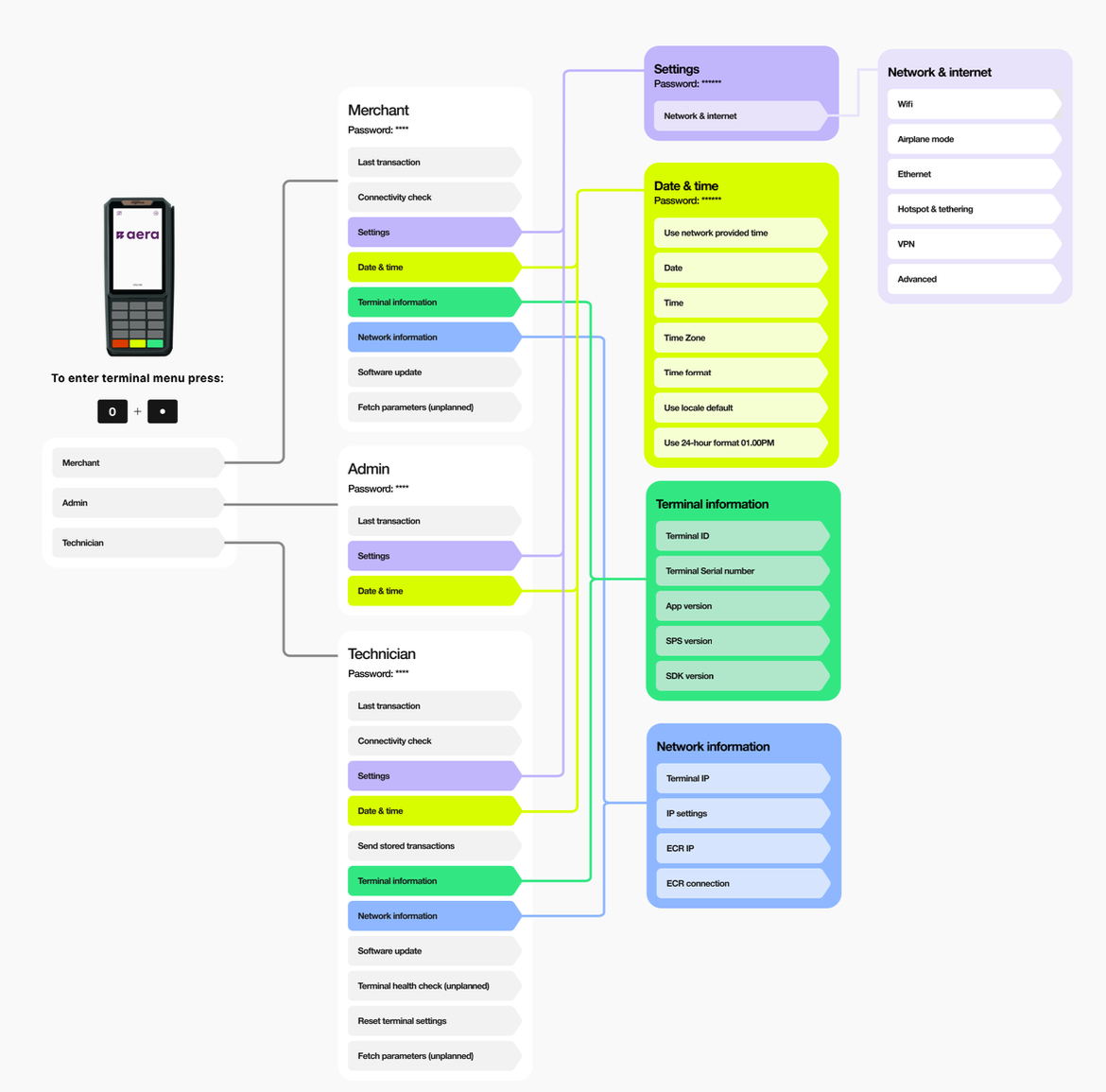
What you find in each part of the terminal menu.
Open the menu: press 0 and . together, or tap Menu on the idle screen. Then select your role: Merchant, Admin or Technician.
Each role has its own password. Settings and Date & time ask for an extra password. The passwords come from Aera. Technician tasks, such as reset and time zone, are in Install and service terminals.
Check the last transaction
Check the terminal before you ask the customer to pay again. This avoids charging them twice.
- Tap Menu on the idle screen, or press 0 and . together.
- Select your role, for example Merchant.
- Enter your password and press Confirm.
- Select Transaction status (called Last transaction in the menu overview above).
- Select the ECR the payment was made from.
- Select the transaction. Transactions are listed by date, with time and amount.
- Read the transaction details.
| Always check | Also shown |
|---|---|
| Payment result, for example success or failure | Transaction type |
| Date and time | Response code |
| Amount | Masked card number |
| Transaction ID | Terminal ID (POIID) |
| Card brand, for example Visa or Mastercard | ECR ID (SaleID) |
If you contact support, include the payment result, date and time, amount, transaction ID and card brand. See Get support.
Updated 12 days ago
Did this page help you?