
Global payment configuration
Global configuration enable you to create one single payment configuration for multiple merchants across your organization.
Accessing Global Configuration
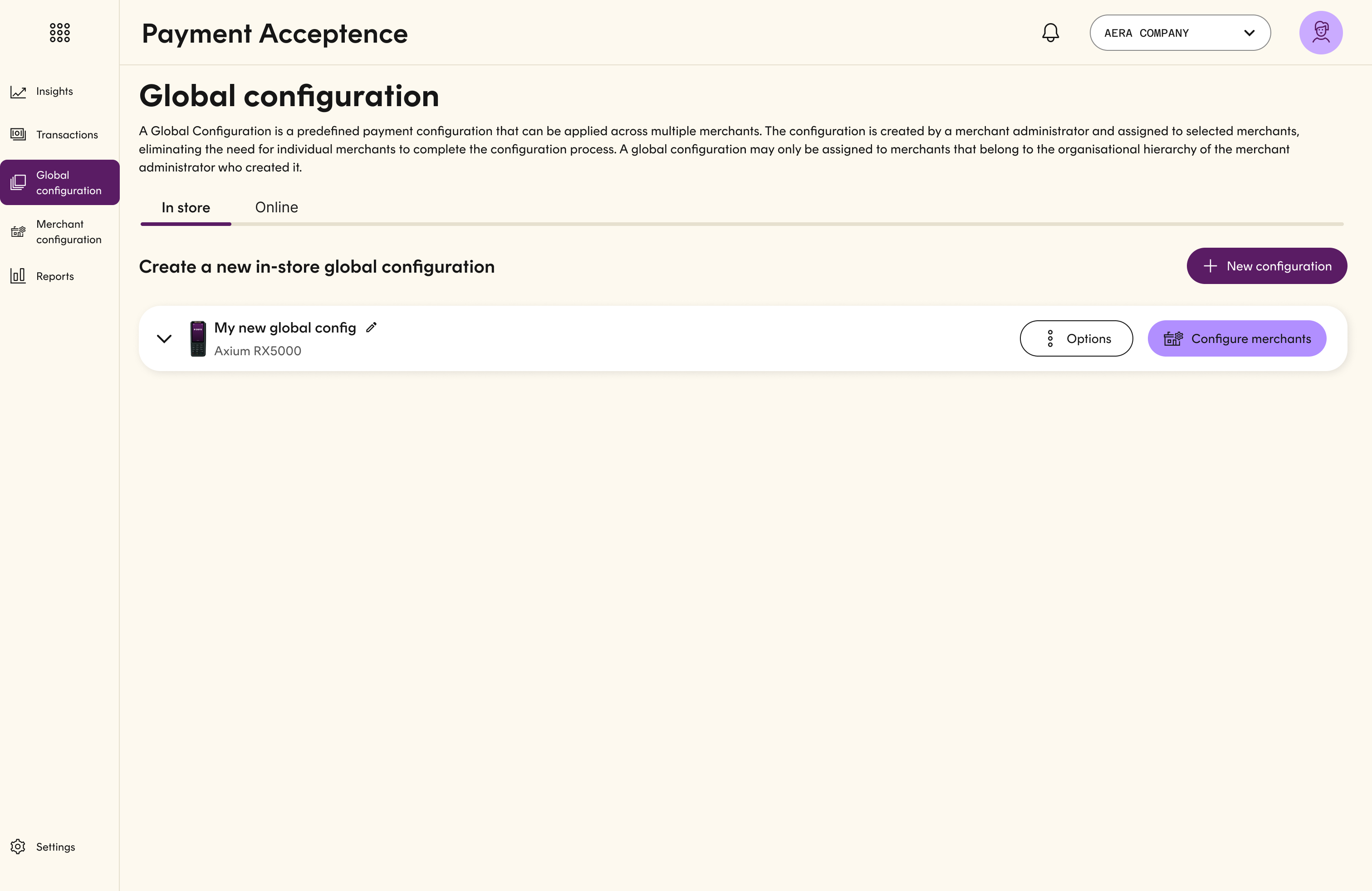
Merchant Administrators can access to the Global Configuration page.
- Log in
- Go to Payment Acceptance
- In the sibe-menu, select 'Global Configuration'
The Global Configuration page displays all created global configurations, including those still in draft and not yet published.
Creating a Global Configuration
Step 1: Create a New Configuration
Click New Configuration located on the top-right part of the page.
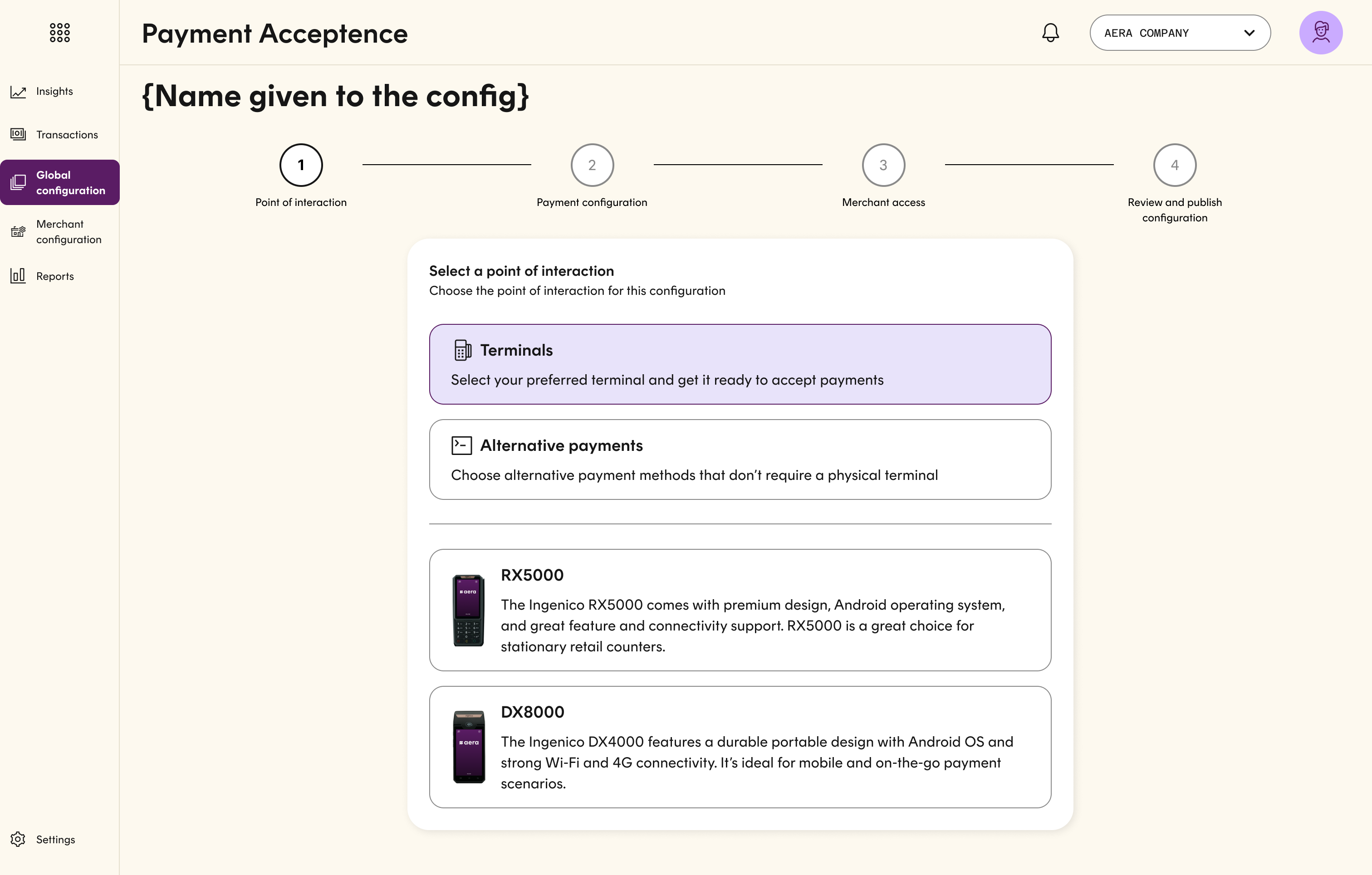
Step 2: Select Point of Interaction (POI)
- Select the Point Of Interaction (POI) type.
- Select the terminal model for which the configuration will be created.
ImportantAfter clicking Next , you can no longer change the terminal type. Verify that the correct model is selected before proceeding.
TipYour progress is automatically saved each time you click Next, allowing you to resume at the same step later if needed.
Step 3: Configure Terminal Settings
Configure all applicable settings for the selected terminal model, then click Next.
Step 4: Enable Payment Methods
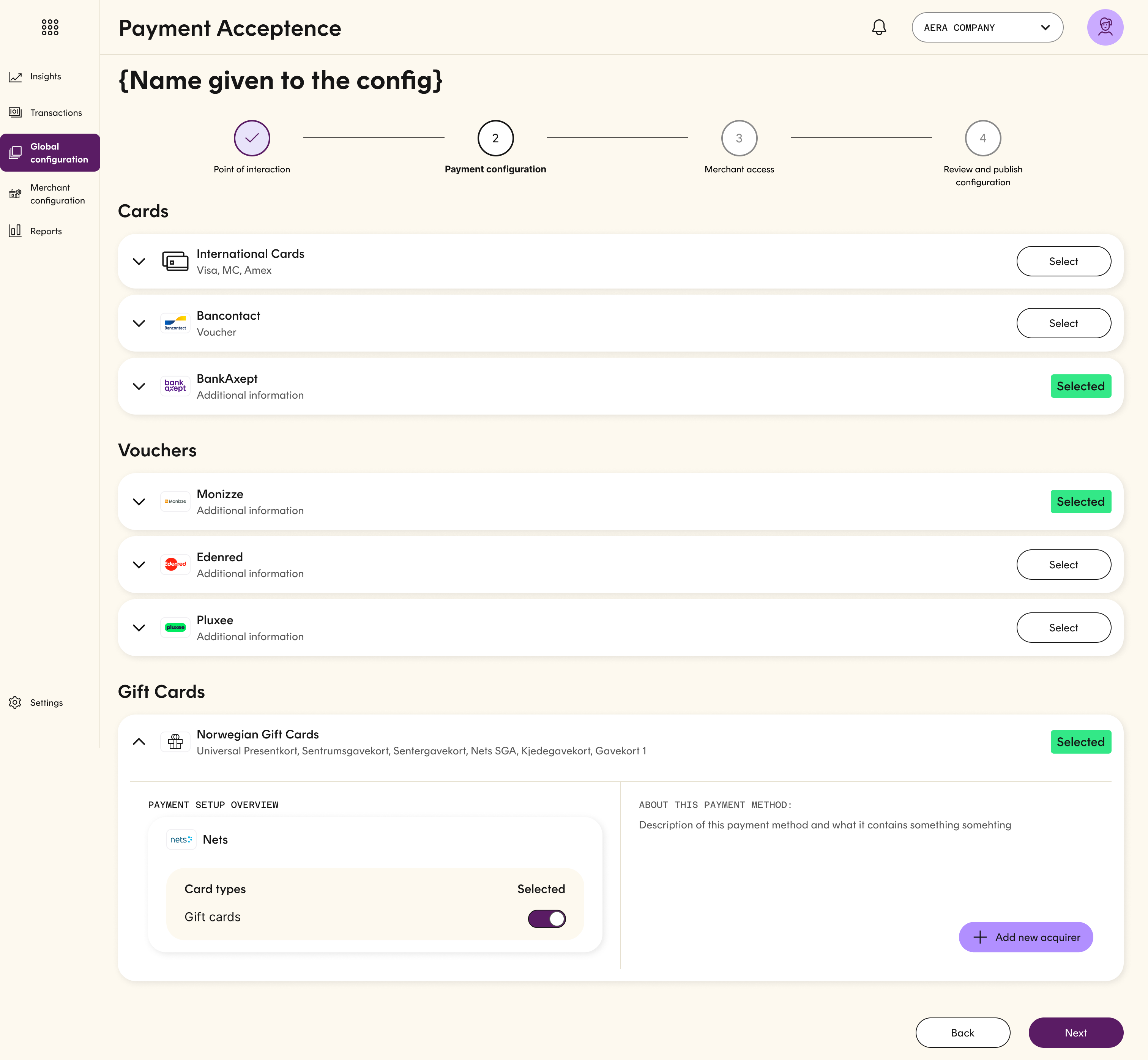
- Select the payment methods you want to enable.
- Click Select on each method and follow the on-screen setup wizard.
- As this is a global configuration, merchant specific credentials are not entered at this stage.
- Once all desired payment methods have been enabled with the correct acquirers, click Next.
Step 5: Assign Merchants
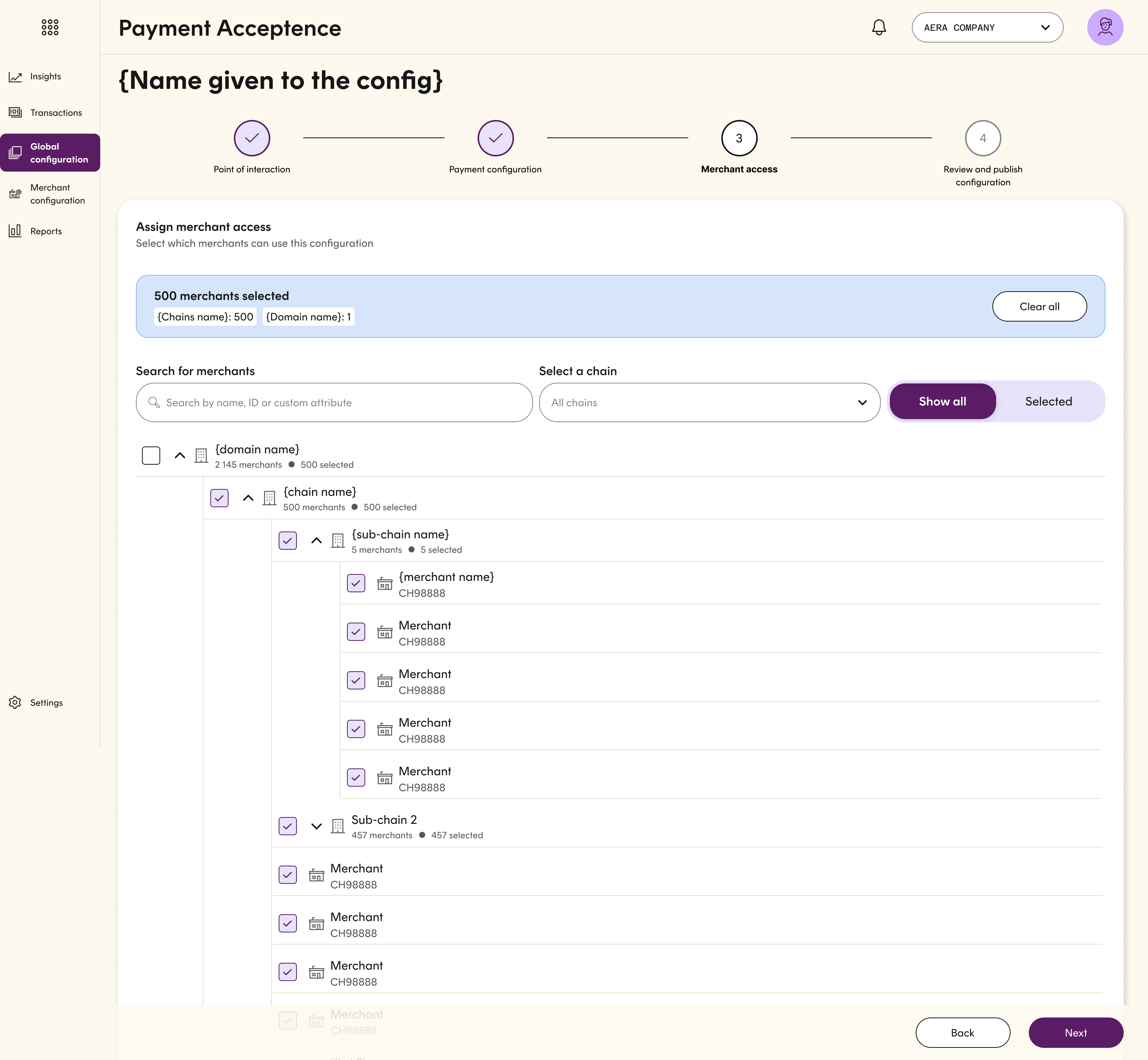
- Select the merchants that will use this global configuration
- After choosing all relevant merchants, click Next
TipUse the organization hierarchy to choose which merchants can access this configuration. The blue info banner shows the number of merchants selected, grouped by parent entity.
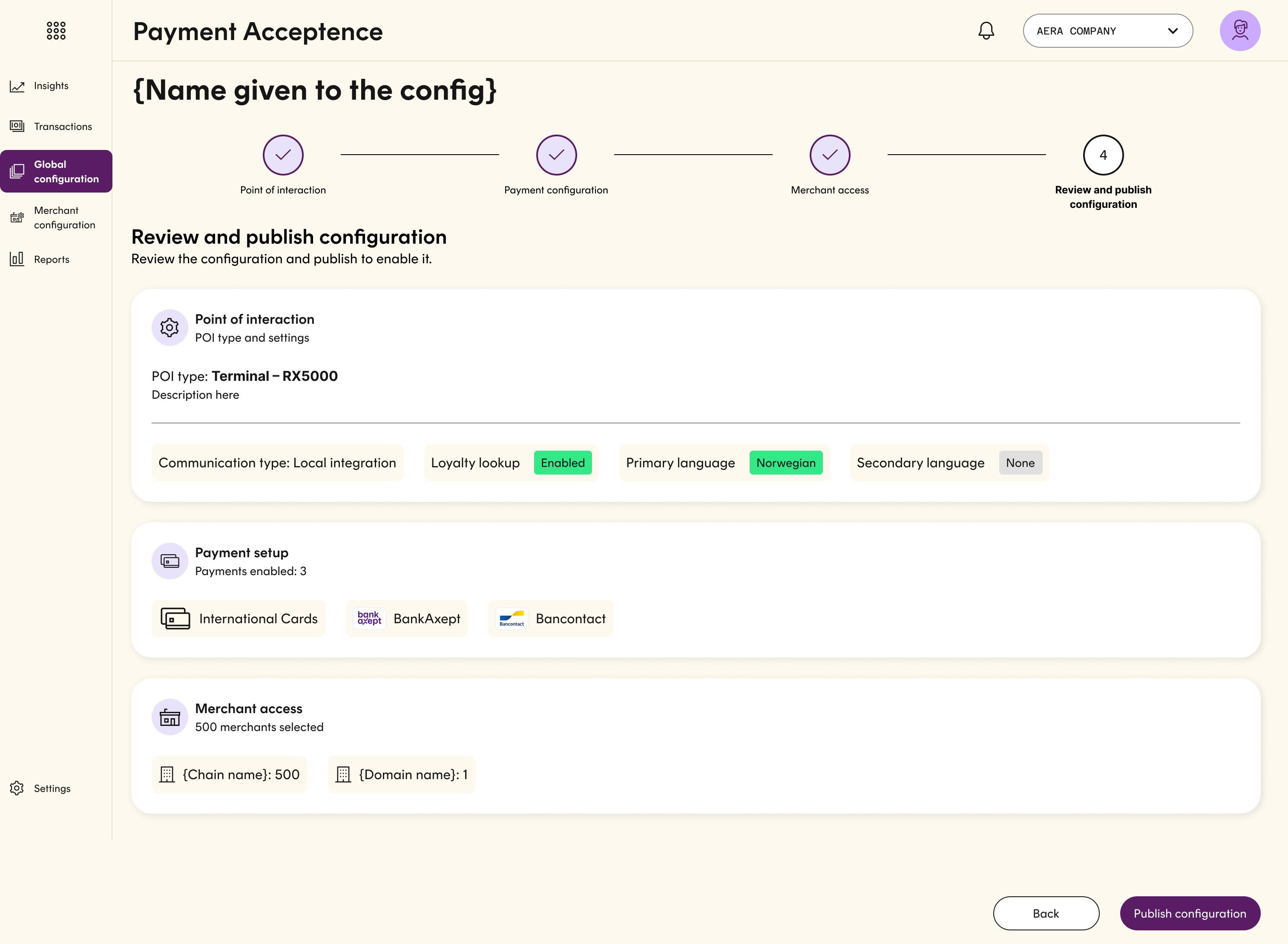
Step 6: Review and Publish
Review all configuration details.
Click Publish Configuration to make it available to all selected merchants.
Step 7 Configuring Merchant Credentials
Option 1: Bulk Configuration
Bulk configuration allows you to configure multiple merchants at once.
Steps
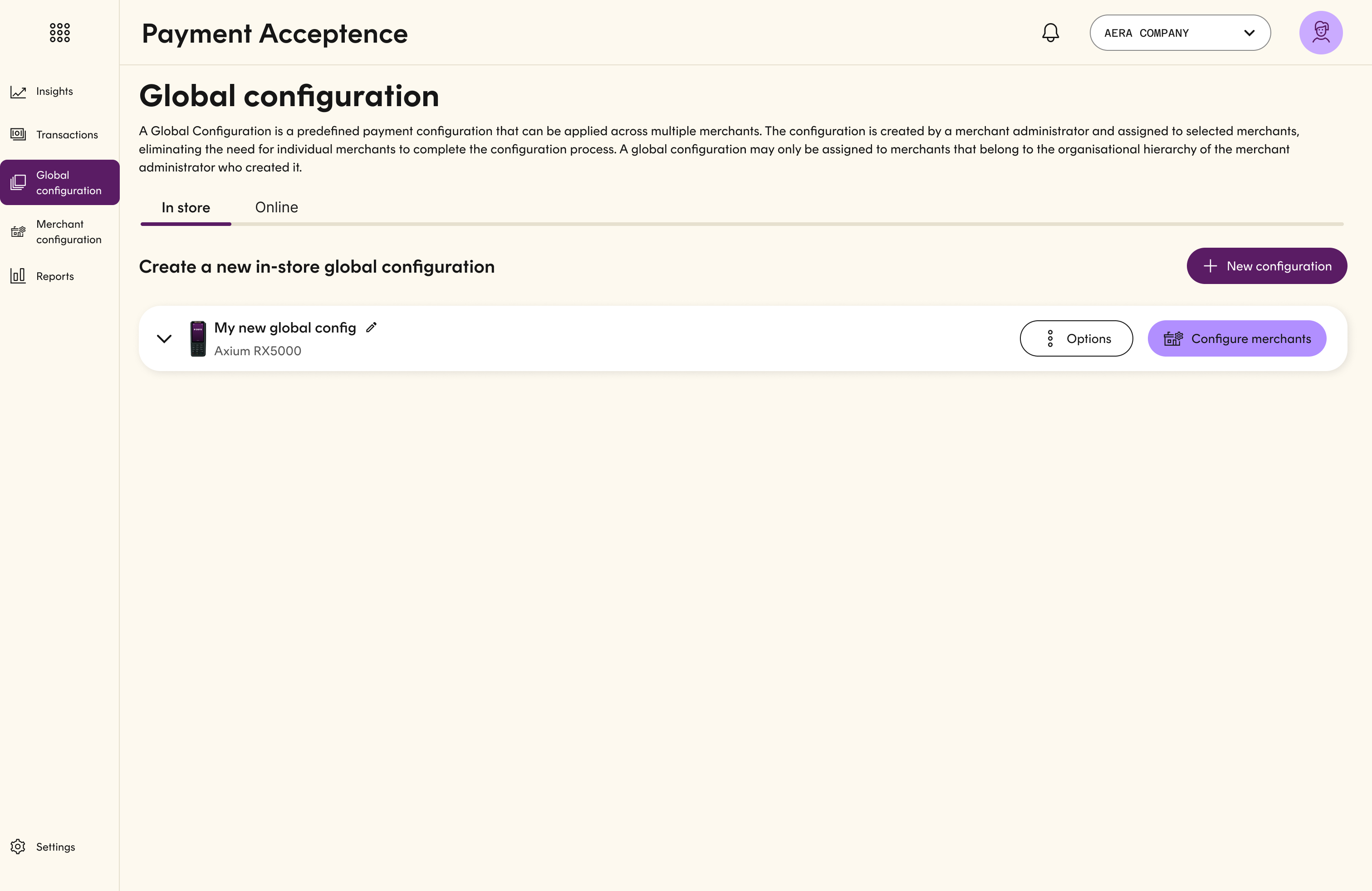
- Locate the global configuration and click Configure Merchants.
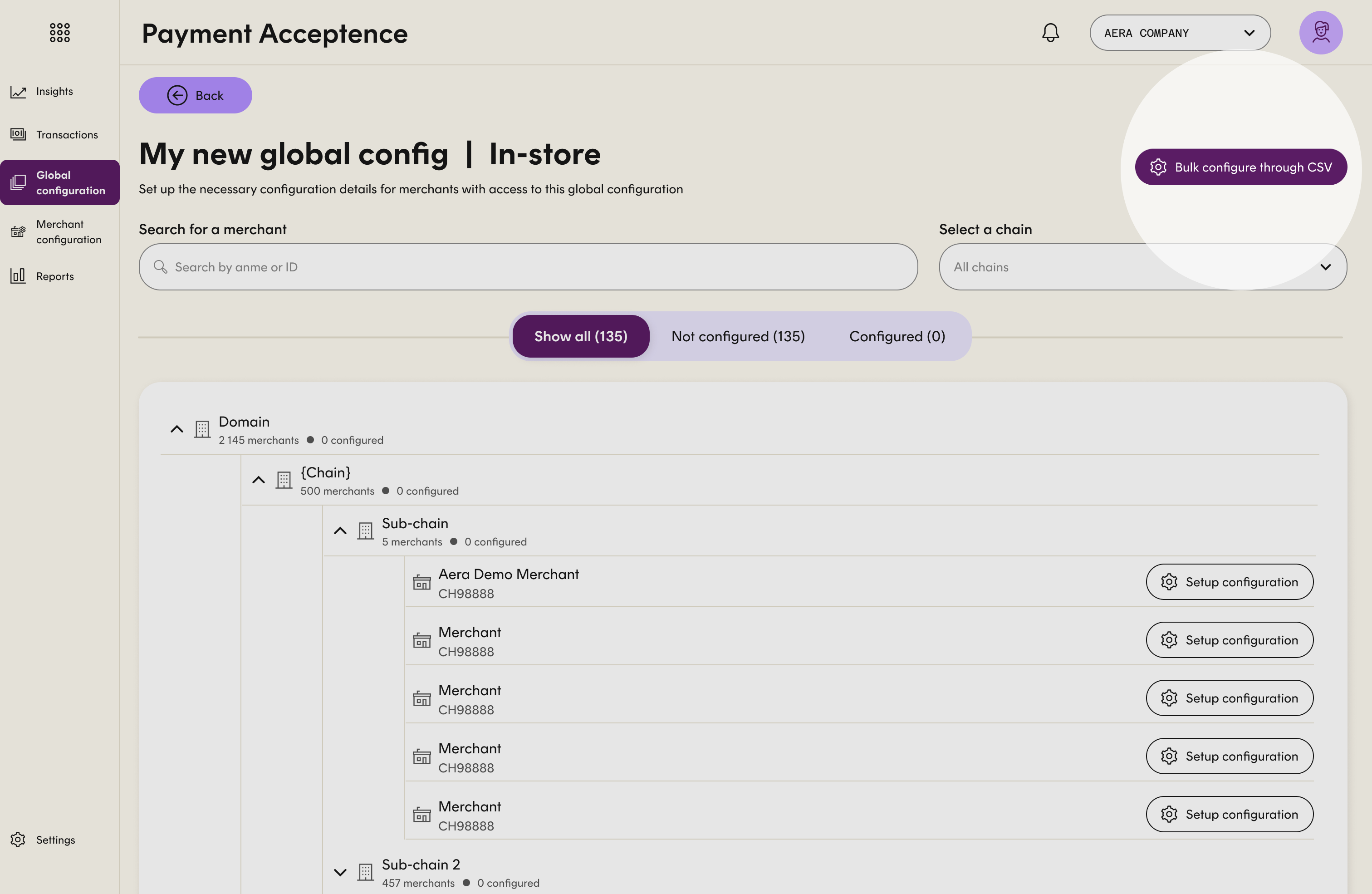
- In the top-right corner, select Bulk Configure Through CSV.
- Download the CSV file. Follow the description on screen.
- Open the file:
- The first column lists all merchants with access to the configuration.
- The top row lists all acquirers selected for this configuration.
- Enter the required credentials for each merchant and save the file
- Click Next,
- Upload the updated file, and click Submit.
Important Notes
- Aera (payfac):
No MID entry is required. The CSV will show Agreement OK or Agreement Missing.
Ensure merchants have valid agreements to avoid declined transactions.- File structure
Do not modify the layout or structure of the CSV. This will cause upload failure.
Tip
- You may rename the CSV file for easier management; this will not affect the upload.
- Not all acquirers must be filled out.
However, any blank field will cause the payment method to remain unconfigured for that merchant, meaning transactions will not be processed.
Option 2: Configure Merchants Individually via Global Configuration Page
- Click Configure Merchants on the desired configuration.
- In the organization overview, locate the merchant you want to configure.
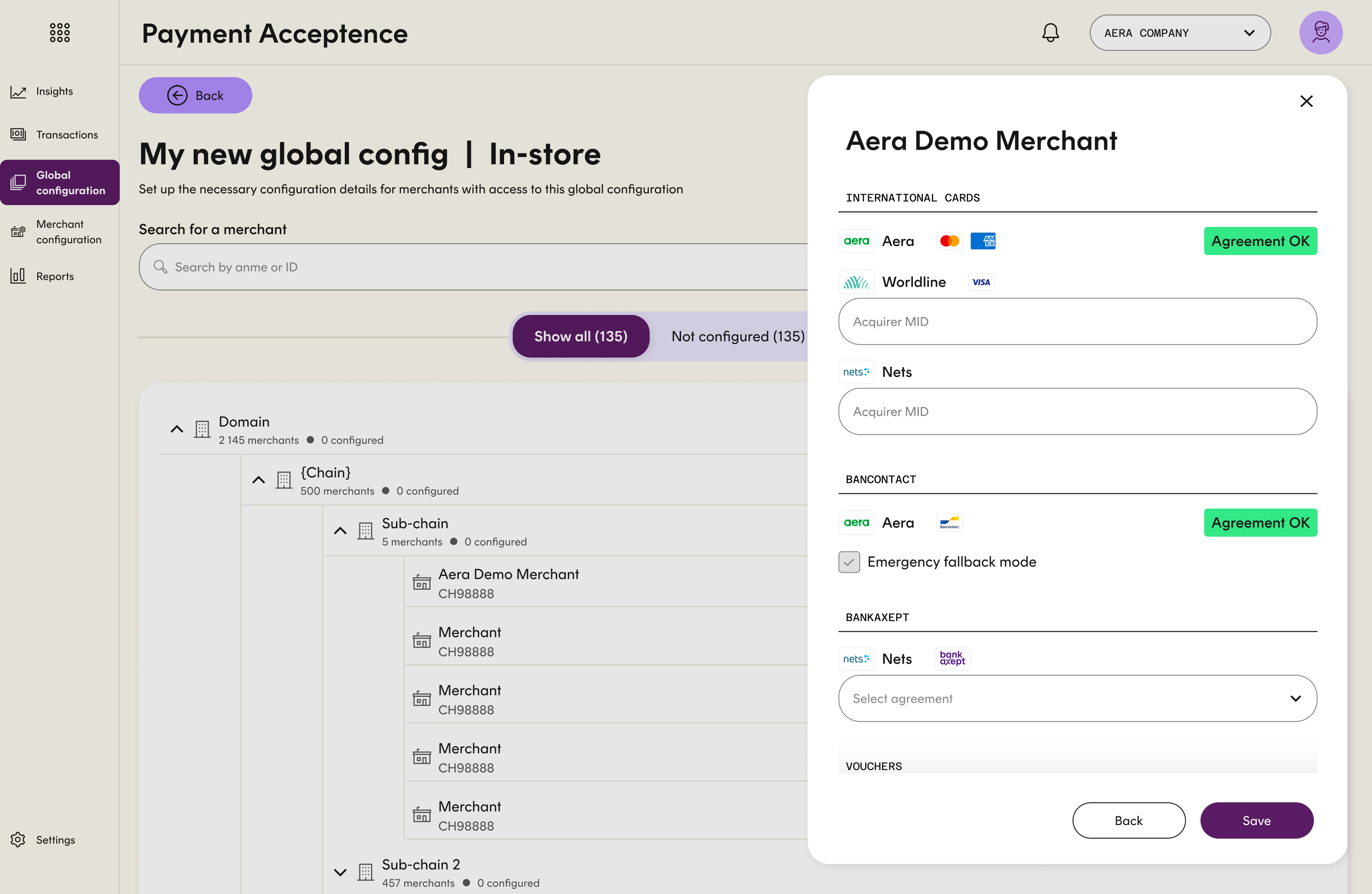
- Click Setup Configuration.
- Enter the required merchant credentials and click Save.
The configuration is now ready to be applied to terminals for the merchant.
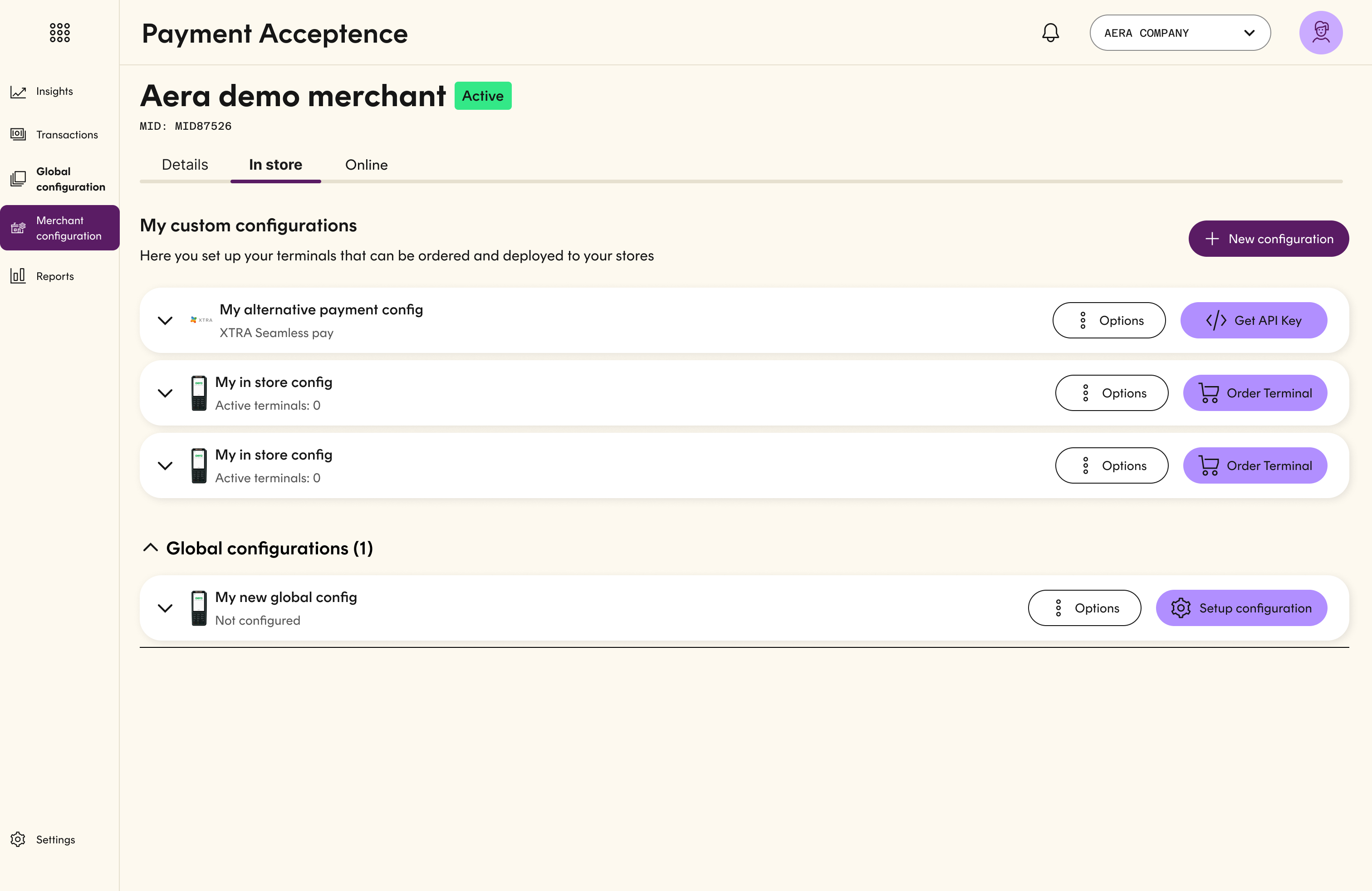
Option 3: Configure Merchants Individually via Merchant Configuration page
- Navigate to Merchant Configuration under Payment Acceptance.
- Select the desired merchant.
- Open the In‑Store page.
- At the bottom, under Global Configurations, locate the configuration you want to set up.
- Click Setup Configuration.
- Enter the merchant specific credentials and click Save.
Updated about 1 month ago